How to see the ads your competitors are running now
See competitors' live ads in Meta's Ad Library and TikTok's Creative Center, or have Sume's Scrapy search them by brand and keep the ones that perform.
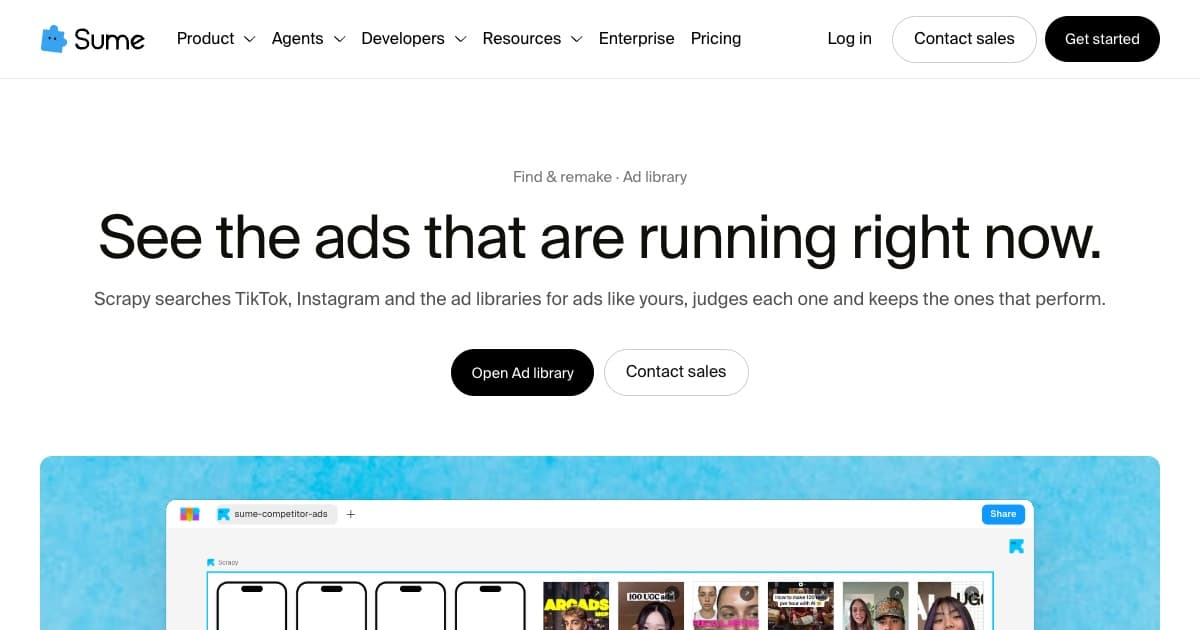
You can see the ads a competitor runs now in Meta's Ad Library, which lists active ads by advertiser, and in TikTok's Creative Center, which shows top ads by industry and region. Both are free to search.
Searching them one brand at a time is slow, and they tell you little about which ad is working. Sume's ad library has Scrapy search TikTok, Instagram and the ad libraries for ads like yours, judge each one and keep the ones that perform.

What should you search for?
- The competitor's brand name, and the names of its products
- The product type, so you see ads from brands you did not know about
- The format you want to try, such as unboxing or before and after
What does Sume show on each ad?
Each card carries the post's views, likes and comments, and Scrapy says why it kept it. From any card you can ask Remixy to remake the ad with your product, so research and the first cut happen in the same project.
Is it fine to copy a competitor's ad?
Copy the shape, not the ad. A format, a hook or a pacing is fair to reuse; another brand's footage, logo, music or people are not. Remixy keeps the reference's structure and swaps in your product, your brand and your words, and your Brand OS keeps every remake on your own brand.
Sources
Related posts
More in Use cases
- AI album cover generator: square art at 3000×3000
Generate square album art, then upscale: Apple recommends at least 3000×3000. On Sume, generate 2400×2400 and upscale it 1.25× to reach 3000×3000.
- AI avatar for online course videos: build and update lessons
Use an AI avatar as your online course instructor: one reusable avatar, a short talking video per section, captions, and one Timeline join per lesson.
- Talking avatar for PowerPoint presentations, slide by slide
Make a talking avatar presenter for PowerPoint: one Sume clip per slide, up to 60 seconds each, in 16:9 or 4:3 to match the slide, inserted as MP4.
- AI avatar for YouTube videos: Shorts and long-form
Use an AI avatar in YouTube videos: a 9:16 talking video of up to 60 seconds for a Short, or 16:9 segments joined into one long-form video.
Written by Sume